How I publish Ghost blog posts from Claude Desktop using n8n
Claude Desktop can write and publish blog posts to Ghost via an n8n workflow — generating HTML content, creating a DALL-E cover image, uploading it, and drafting the post. This walkthrough covers the full setup including JSON escaping, image handling, and why HTML beats Lexical.
I built a workflow that lets me write a blog post in Claude Desktop and publish it as a draft to my Ghost blog with a single command. Claude generates the content as HTML, and triggers an n8n workflow that generates a cover image with DALL-E, uploads it to Ghost, and creates the draft post. This article walks through how it works and every gotcha I hit along the way.
This entire article was written and published from Claude Desktop using the workflow described below.
The setup
Three things are involved here:
- Ghost (self-hosted) as the blog platform
- n8n (self-hosted) as the automation layer
- Claude Desktop in Cowork mode, connected to n8n via MCP
Claude Desktop can talk to n8n through the n8n MCP server, which means Claude can search for workflows, read their configuration, and execute them. The n8n workflow handles everything Ghost-specific: formatting the API request, generating a cover image, uploading it, and creating the post.
Why I ditched the built-in Ghost node
Even with the Admin API credential, the built-in Ghost node is limited. There's no field for feature_image (the cover image). I checked Additional Fields, clicked "+ Add Field," and the option simply isn't there. So I replaced it with an HTTP Request node that calls the Ghost Admin API directly. More work to set up, but full control over every field.
The JSON escaping problem
This took the longest to figure out. At first I was trying to pass Lexical JSON as the content format, which meant I had JSON (the Lexical document) inside JSON (the posts wrapper) inside JSON (the HTTP request body). Three levels of nesting.
My first attempt used n8n's JSON body template with expressions:
{
  "posts": [{
    "title": "{{ $json.title }}",
    "lexical": "{{ $json.content }}"
  }]
}
This breaks immediately. $json.content is a JSON string full of double quotes, curly braces, and square brackets. When n8n interpolates it into the template, nothing gets escaped, and the whole thing becomes invalid JSON. I tried wrapping the expression in quotes, escaping manually, using different expression syntax. None of it worked reliably with nested JSON content.
The fix: don't use the template at all. Build the entire request body in a Code node using JSON.stringify(), which handles all the escaping correctly:
const item = $input.all()[0].json;

return [{
  json: {
    body: JSON.stringify({
      posts: [{
        status: "draft",
        title: item.title,
        html: item.content,
        feature_image: item.feature_image,
        custom_excerpt: item.excerpt
      }]
    })
  }
}];
Then the HTTP Request node just uses {{ $json.body }} as the JSON body. This solved the escaping, but I later ran into even worse problems with Lexical JSON getting corrupted through MCP (more on that in the "Send HTML, not Lexical" section). Moving to the html field eliminated the nested JSON issue entirely, since HTML is just a flat string with no structural nesting to break.
Cover image generation and upload
The workflow generates cover images using DALL-E via the OpenAI node in n8n. The caller passes a cover_prompt field describing what to draw, and the OpenAI node generates an image.
One thing I learned the hard way: DALL-E returns temporary URLs that expire within about an hour. If you just pass that URL as feature_image to Ghost, the cover image will break silently a few hours later. You won't notice until someone visits the post and sees a broken image.
The fix is to upload the image to Ghost first using its image upload endpoint /ghost/api/admin/images/upload/, then use the permanent Ghost-hosted URL.
This part had its own problems.
The filename issue
Ghost's image upload endpoint validates the filename extension. The binary data coming from the DALL-E node had a filename of just data with no extension. Ghost rejected it with a 415 "Please select a valid image" error.
The fix is a small Code node that renames the binary file before uploading:
const items = $input.all();

for (const item of items) {
  if (item.binary && item.binary.data) {
    const id = Math.random().toString(36).substring(2, 10);
    item.binary.data.fileName = `cover-${id}.png`;
  }
}

return items;
The final workflow
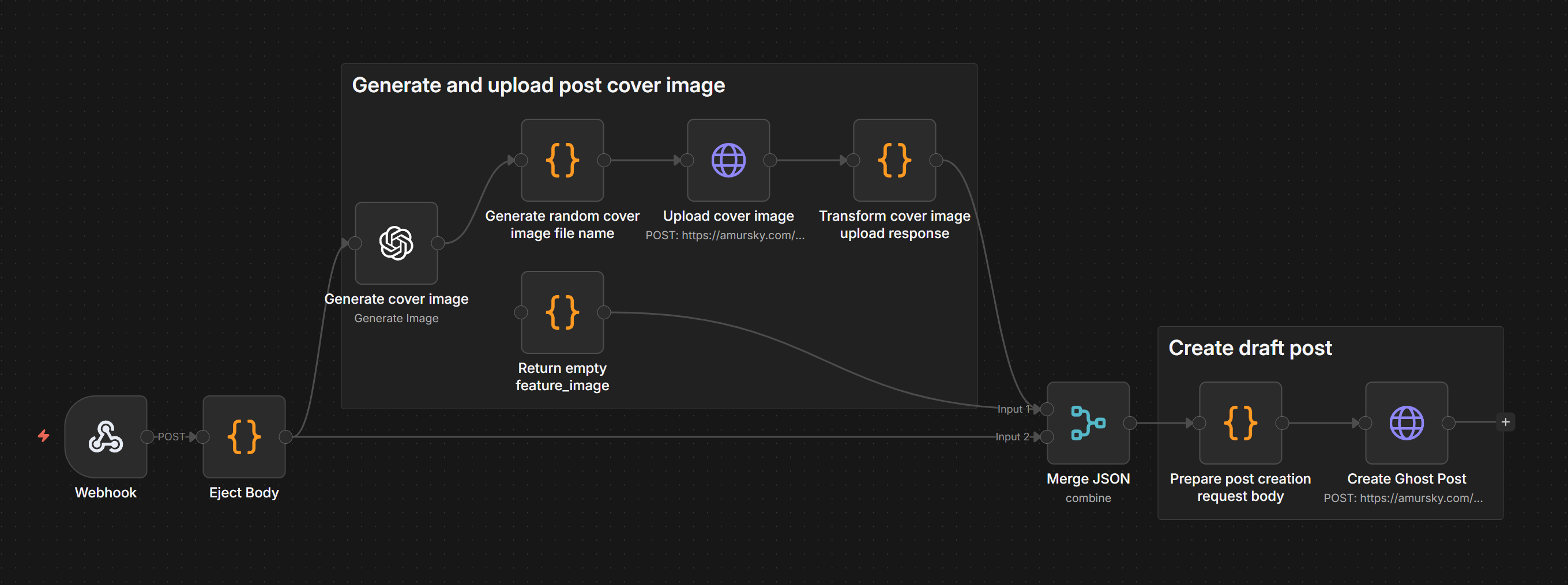
The flow goes: Chat Trigger receives the payload, a Code node parses it, then the flow splits. One branch passes post data forward. The other generates a cover image with DALL-E, renames the binary file, uploads it to Ghost, and extracts the permanent URL from the response. The two branches merge, another Code node builds the posts-wrapped JSON body with JSON.stringify() (using the html field for content), and a final HTTP Request sends it to Ghost's Admin API.
If cover image generation fails, the error branch returns an empty feature_image and the post gets created without a cover.
You can grab the full workflow JSON here. Import it into n8n, add your Ghost Admin API and OpenAI credentials, and update the Ghost URL to point at your instance.
Send HTML, not Lexical
My first approach was to have Claude format content as Lexical JSON and send it through the n8n MCP. Bad idea. Lexical JSON is deeply nested, and when you pass it through MCP as a string inside a string inside a JSON payload, the escaping gets corrupted in transit. Characters swap places. Brackets end up in the wrong order. Ghost rejects it with a cryptic "should match format 'json-string'" validation error.
I tried a markdown card approach next, wrapping plain markdown in a Lexical markdown card structure server-side. That worked, but the post shows up as a markdown editing block in the Ghost editor rather than native content. It renders fine on the published page, but editing the post later is awkward.
The real fix: use Ghost's html field instead of lexical. The Admin API accepts raw HTML on post creation and converts it to native Lexical internally. The post looks fully native in the editor: regular paragraphs, headings, code blocks, all editable as if you'd typed it in Ghost directly. And HTML is just a flat string, so there are no nested JSON escaping issues when passing it through MCP.
Triggering from Claude Desktop
With the n8n MCP server connected to Claude Desktop, I can ask Claude to execute the workflow directly. Claude searches for the workflow by name, reads its trigger schema, builds the payload, and calls the execute endpoint.
The input payload is simple:
{
  "title": "My blog post",
  "content": "<h2>First section</h2><p>Some HTML content...</p>",
  "excerpt": "A short description for SEO",
  "cover_prompt": "What to draw on the cover image"
}
No Lexical structure to worry about. Claude generates HTML, Ghost converts it to native Lexical on its end, and the post shows up fully editable in the Ghost editor.
Setting up Claude with the right instructions
You can talk to Claude in Cowork mode and say "write a blog post about X and publish it as a draft," and it'll figure things out. But the results are better if Claude knows your writing style and blog conventions ahead of time.
I created a Claude project with custom instructions that include things like: the blog's tone (technical, first person, opinionated), formatting preferences (sentence case headings, no emoji), the n8n workflow name to trigger, and what fields the workflow expects. This way I don't have to re-explain the setup every time.
Here's roughly what my project instructions look like:
You have access to n8n via MCP. There's a workflow called
"Create Ghost post draft" that creates blog posts on amursky.com.

When I ask you to write and publish a post:
1. Write the content as HTML
2. Trigger the workflow with:
  - title: Sentence case post title
  - content: Post content in HTML format
  - excerpt: SEO-optimized description of the article, under 150 chars
  - cover_prompt: What to draw on a cover image

Writing style:
- First person, developer audience
- Sentence case for headings
- No emoji, no promotional language
- Include code examples where relevant
- Be specific and opinionated, not vague
The project instructions persist across conversations, so each new chat already knows what to do. I just say "write a post about setting up Caddy as a reverse proxy" and Claude writes, humanizes, and publishes it without me repeating the workflow details.
This is worth doing even if you only publish occasionally. Without the instructions, Claude tends to ask a lot of clarifying questions or default to a generic tone. With them, it gets closer to your voice on the first try.
Final thoughts
Most of the work here wasn't building the workflow. It was figuring out why things broke in ways that were hard to Google. Ghost's API is well-documented, but the interaction between n8n's expression engine, MCP's JSON transport, and Ghost's Lexical format created problems that none of those docs cover individually.
Once it worked, though, it actually changed how I write. I open Claude, describe what I want to write about, and a few minutes later there's a draft in Ghost with a cover image. I still review and edit in Ghost before publishing, but the friction of starting a post went from "open editor, stare at blank page, find a stock photo" to "tell Claude what's on my mind." That's a meaningful difference for someone who writes when the motivation hits and loses it by the time the CMS loads.
This entire article was drafted in Claude Desktop and published to Ghost using the workflow it describes. If that's not a good test, I don't know what is.